

Need a free CRM solution that actually works? Google Sheets CRM templates offer small businesses and solopreneurs a powerful way to manage customer relationships.
This free spreadsheet CRM template will help you track contacts and interactions with ease, offering customizable features and real-time collaboration. This step-by-step guide shows you exactly how to set up, customize, and optimize a professional CRM spreadsheet in 2026.
Key Takeaways:
|
|---|
Why Choose Google Sheets for your CRM template?
Imagine having a customer relationship management (CRM) tool that’s not only free but also highly customizable and easy to use. The CRM template includes a pre-built Customer Data sheet, Interactions tracker, and Dashboard with reporting, making it straightforward to organize your customer data and contact interactions. Whether you’re a solopreneur or part of a small business, this simple CRM solution is designed to meet your needs without breaking the bank.
Google sheets for CRM templates are:✅ Cost effective - Google Sheets is a cost effective alternative to paid CRM solutions |
|---|
In this context, CRM stands for a simple, spreadsheet-based contact management tool, not a full-featured CRM platform. While spreadsheet software is a cost effective way to manage contacts and customer data, it may lack the full functionality, automation, and advanced features offered by dedicated CRM platforms.
See here if you're wondering whether you should choose a spreadsheet CRM or upgrade to a CRM software solution
Excel CRM Template vs Google Sheets CRM template
Both Excel or Google Sheets can be used to set up a CRM spreadsheet quickly and affordably. Compared to Google Sheets templates, excel templates provide robust offline functionality and advanced features, but may be less collaborative.
Quick Start: Get Your Free Template
Here is a list of tailor-made CRM templates on Google sheets. These simple CRM templates are ideal for users who want a user-friendly, easy-to-customize solution for tracking contacts and sales.
Or you can also use our guide below to create and customize your own template.
Free Google Sheets CRM Template for small service businesses & agencies: Use this to start customising your own.
Template includes: Service type and pricing, Client project status, Retainer and billing information, Lead source attributionFree Networking CRM template for tracking contacts met in offline events and trade conferences:
Template Includes: Event details, Contact details, Relationship point of contact, Date for follow up, Status
Free spreadsheet CRM template for Real estate agents:
Template includes: Property details and preferences, Showing schedules and feedback, Buyer/seller classification, Commission tracking
Free spreadsheet CRM template for Insurance brokers:
Template includes: Customer details, Referral source, Request details, Pricing, Payor details, Proposal status, Payment status, Renewal status
Free spreadsheet CRM template for tax advisors or financial advisors:
Template includes: Customer details, Service type, Pricing, Appointment scheduling, Data input completion tracker, Completion status
Free spreadsheet CRM template for not-for-profits or grant based associations:
Template includes: Donor details, Referral source management, Interaction tracker, Contribution details, Key asks / conditions
To set up these custom templates, just make a copy for yourself. Alternately,
Download template → Use our optimized template links below
Upload to Google Drive or use Offline with Excel → Drag and drop the file
Open with Google Sheets → Right-click > Open with > Google Sheets
Start customizing → Rename and organize for your business
Note: Templates include an instructions sheet to guide you through setup, customizing sales stages, and managing your sales process. You can also easily export data (such as customer information) to .xlsx or .csv formats for use in other systems.
Further resources:
You can find a variety of free CRM templates online, including both Google Sheets and Excel CRM templates. Many of these are customizable templates designed to fit different business needs, allowing you to manage customer data, sales pipelines, and follow-ups efficiently.
Google Template Gallery
Open Google Sheets → Go to sheets.google.com
Click "Template Gallery" → Look for business templates
Select CRM template → Choose one that matches your needs
Make a copy → File > Make a copy
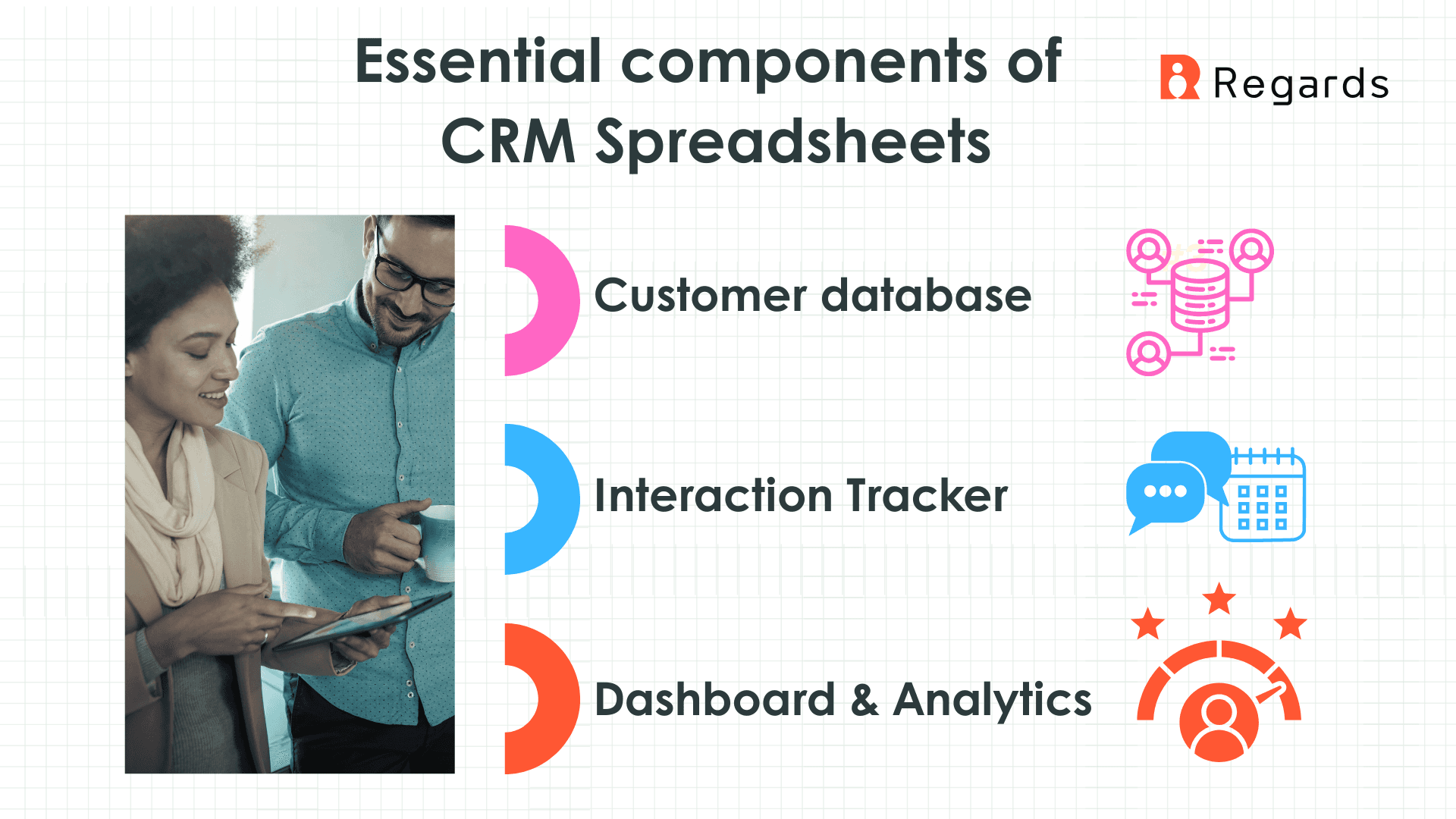
Essential CRM Template Components
1. Customer Data Sheet
Your main contact database, often called the contacts sheet, includes fields for:
Name, email, phone (phone numbers), company (company details)
Lead source and status
Deal value and stage
Last contact date
You can also add custom fields to capture additional information specific to your business.
2. Interactions Tracker
Log every customer touchpoint: The interactions tracker helps you track interactions and customer interactions with potential customers and leads.
Date and interaction type
Sales rep responsible
Meeting notes and outcomes
Next follow-up date
Track leads: Tracking leads is essential for following up with potential customers
3. Dashboard & Analytics
Visual overview of key metrics:
This dashboard serves as a sales dashboard for your sales team, providing a clear summary of essential sales data.
Active leads and conversion rates
Sales pipeline status
Deal value (including estimated value for each opportunity)
Team performance charts
Monthly/quarterly trends
Tracking sales opportunities throughout the pipeline
Step-by-Step Process to customize your own CRM Template
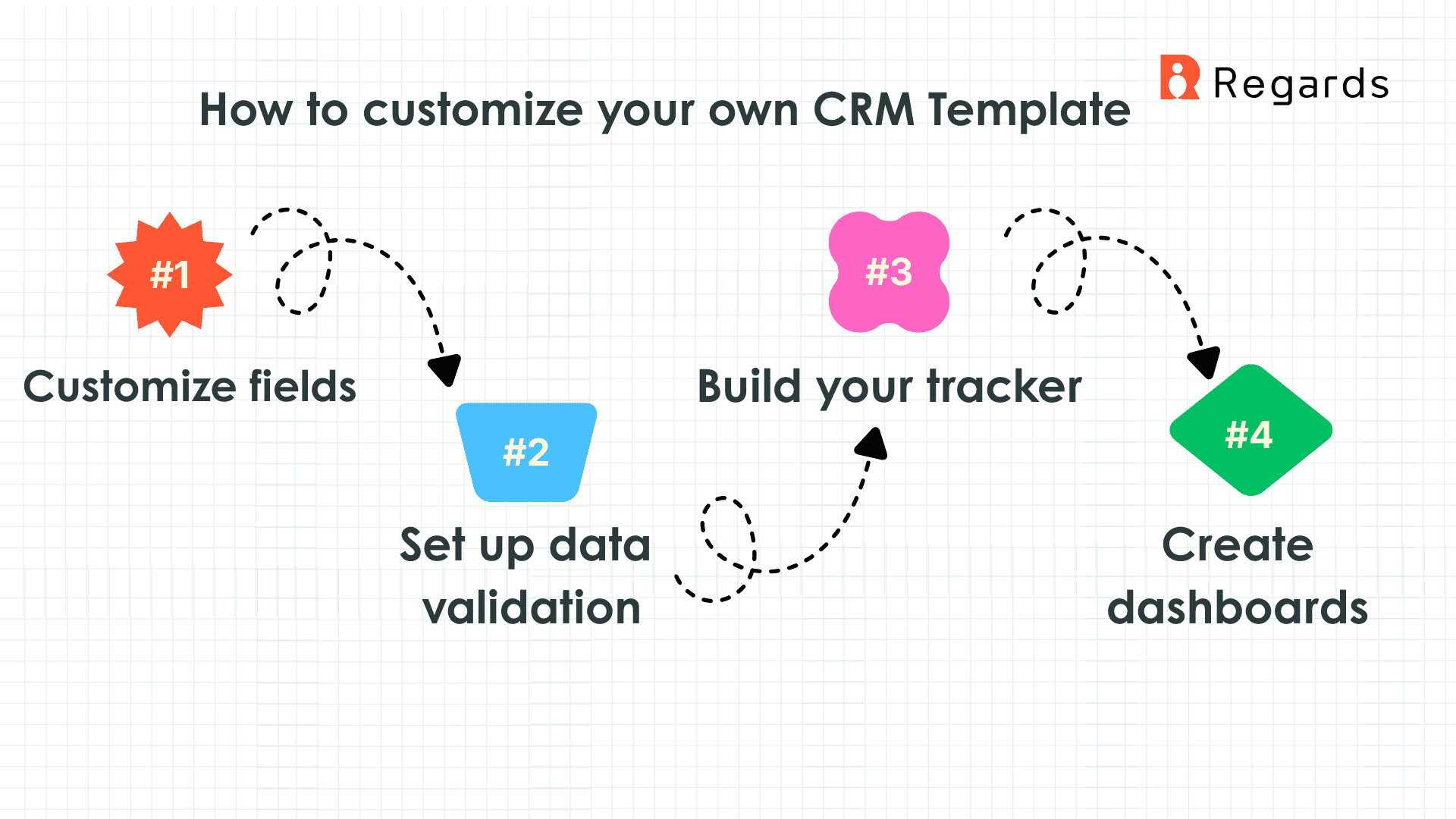
Step 1: Customize Your Contact Fields
Essential fields for small businesses:
Field Name | Purpose | Data Type |
|---|---|---|
Contact Name | Primary identifier | Text |
Email Address | Communication | Email validation |
Phone Number | Direct contact | Phone format |
Company | Business context | Text |
Lead Source | Marketing tracking | Dropdown menu |
Deal Stage | Sales pipeline (you can create custom stages in the dropdown to match your sales process) | Dropdown menu |
Deal Value | Revenue potential | Currency |
Last Contact | Relationship tracking | Date |
Next Follow-up | Task management | Date |
Pro tip: Use data validation to create dropdown menus for consistent entries.
Keep in mind that manual data entry is required for each new contact, which can be time-consuming as your CRM needs grow and you require more advanced features like custom stages to fit your unique sales workflow.
Step 2: Set Up Data Validation
Create dropdown menus for:
These features make your CRM a highly customizable template.
Lead Status: Prospect, Qualified, Customer, Closed-Lost
Lead Source: Website, Referral, Social Media, Cold Outreach (track multiple lead sources to analyze and optimize your sales pipeline)
Deal Stage: Initial Contact, Proposal, Negotiation, Closed-Won
Interaction Type: Call, Email, Meeting, Demo
How to add dropdowns:
Select the column range
Data > Data validation
Choose “List of items”
Enter your options separated by commas
Step 3: Build Your Interactions Tracker
You can link your interactions tracker to your pipeline sheet for better visibility and management of your sales process.
Required columns:
Date: When the interaction occurred
Contact Name: Link to main customer sheet
Interaction Type: Call, email, meeting, etc.
Sales Rep: Team member responsible
Summary: Brief notes about the conversation
Follow-up Required: Yes/No checkbox
Next Action: Specific next step, such as scheduling a meeting, sending a proposal, or moving the opportunity closer to closing a sale
Smart formula tip: Use =VLOOKUP() to auto-populate contact details from your main customer sheet.
Creating Professional CRM Dashboards
Dashboards are essential for tracking sales metrics, pipeline status, and overall performance in a CRM. While Google Sheets offers powerful dashboard capabilities, similar dashboards can also be created in an excel spreadsheet using excel crm templates. These excel crm solutions are often used by small businesses as a simple and affordable way to manage customer data, though they may lack the scalability and advanced features of dedicated CRM software.
Key Metrics to Track
Sales Performance:
Monthly revenue trends
Conversion rates by lead source, tracking multiple lead sources and sales pipelines for better optimization
Average deal size
Sales cycle length
Customer Insights:
Active leads count
Customer retention rate
Interaction frequency
Top-performing sales reps
Monitoring important data points for informed decision-making
Dashboard Charts to Include
1. Lead Source Performance (Pie Chart)
These charts are standard features in a CRM Excel template, helping you visualize lead sources and performance metrics.
2. Monthly Sales Trend (Line Chart) Track closed deals by month to identify patterns and growth.
3. Pipeline Status (Bar Chart) Visualize deals in each stage of your sales process.
4. Team Performance (Column Chart) Compare individual sales rep performance and deal counts.
Advanced Dashboard Features
Conditional Formatting for Visual Cues:
Red highlighting: Overdue follow-ups
Green highlighting: Recently closed deals
Yellow highlighting: Hot prospects requiring attention
Automated Calculations:
Days since last contact: =TODAY()-[Last_Contact_Date]
Deal probability scoring: =IF([Deal_Stage]=”Proposal”,70%,30%)
Revenue forecasting: =[Deal_Value]*[Probability]
Note: You can use custom fields to create more advanced metrics and visualizations tailored to your workflow needs.
Automation & Integration Tips
Integrating your CRM with other tools, such as accounting, project management, or communication software, can streamline your workflow and improve efficiency.
Popular Automation Ideas
Email Marketing Integration:
Auto-add new leads to email sequences
Trigger follow-up emails based on deal stage
Sync customer data with Mailchimp or ConvertKit
Calendar Integration:
Create calendar events for scheduled follow-ups
Block time for prospect calls
Send meeting reminders automatically
Automating calendar events improves time management for your team
Project Management Connection:
Create tasks in Asana/Trello for each new lead
Update project status when deals close
Assign team members to customer accounts
Zapier Automation Examples
Popular “Zaps” for Google Sheets CRM:
New form submission → Add to Google Sheets CRM
New row in Sheets → Create Slack notification
Deal stage update → Send email to customer
Overdue follow-up → Create task in project management tool
These automations help reduce the need for manually entering data into your CRM, saving time and minimizing repetitive tasks.
Mobile Optimization Tips
Make your CRM mobile-friendly:
Freeze important columns (Name, Phone, Email)
Use shorter column headers for better mobile viewing
Create filtered views for quick mobile access
Enable offline access through Google Sheets app
Mobile workflow tips:
Use voice-to-text for quick note-taking
Set up mobile notifications for overdue follow-ups
Create QR codes linking to your CRM for easy team access
Data Security & Backup Best Practices
Security Measures
Enable 2-factor authentication on your Google account
Set appropriate sharing permissions (view, comment, edit)
Create team-specific filtered views to limit data access
Use Google Workspace for additional admin controls
Backup Strategy
Weekly CSV exports to external storage
Version history tracking (automatic in Google Sheets)
Duplicate critical sheets as backup copies
Cloud storage backup to Dropbox or OneDrive
When to Upgrade from Google Sheets CRM
As your business grows, managing customer data and interactions in spreadsheets like Google Sheets can become increasingly challenging. While spreadsheets are a great starting point, they often lack the full functionality, automation, and security features needed for efficient scaling. At this stage, transitioning to a proper CRM or dedicated CRM system is essential to support business expansion, streamline collaboration, and ensure your data is managed effectively.
Upgrade Signals
You've outgrown Google Sheets when:
100+ contacts - Performance slows and search becomes harder
3+ team members - Collaboration becomes complex
Multiple sales processes or interaction touchpoints - Need advanced workflow automation
Integration requirements - Need native API connections
Advanced reporting - Require sophisticated analytics
Troubleshooting Common Issues
Performance Problems
Issue: Slow loading with large datasets
Solution: Split data across multiple sheets, use filtered views
Issue: Formula errors breaking calculations
Solution: Use IFERROR() function to handle blank cells
Data Consistency Problems
Issue: Inconsistent data entry across team members
Solution: Implement data validation rules and training
Issue: Duplicate contacts
Solution: Use UNIQUE() function and conditional formatting
Conclusion: Start Your Free CRM Today
A well-designed Google Sheets CRM can effectively manage hundreds of contacts, track thousands of interactions, and provide valuable business insights—all for free. Using a free CRM template helps manage customer data efficiently and supports effective customer relationship management, making it an ideal solution for small businesses looking to organize and nurture client relationships without extra cost.
Key Success Factors:
✅ Start simple - Don't overcomplicate your initial setup
✅ Stay consistent - Regular updates are more important than perfect data
✅ Automate gradually - Add integrations as your processes mature
✅ Plan for growth - Design with scalability in mind
Ready to get started? Download our optimized template and have your CRM running within 30 minutes.

Why we built Regards
I’m bad at staying in touch. Not because I don’t value people. Its a lot of work, and I didn’t have a system. This started as my fix. A quiet assistant that helped me nurture relationships thoughtfully. When people noticed the difference and asked what I was doing, it slowly evolved into a product. And the love has been incredible. Regards, Khuze

Frequently Asked Questions
How do I share my Google Sheets CRM with my team?
Click the "Share" button in the top right, add team member emails, and set appropriate permissions (Viewer, Commenter, or Editor). For better control, create filtered views for different team roles.
Can I import contacts from other systems?
Yes! Export your existing contacts as a CSV file, then use "File > Import" in Google Sheets. Make sure to map columns correctly during the import process.
What's the maximum number of contacts I can manage?
Google Sheets can handle up to 5 million cells per spreadsheet. For a typical CRM with 10 columns, this means roughly 500,000 contacts, though performance may slow and usability will decrease at above 100+ contacts.
How do I create automatic follow-up reminders?
Use conditional formatting to highlight overdue follow-ups, or integrate with Google Calendar to create automatic reminders. For advanced automation, connect with Zapier to send email or Slack notifications.
Can I access my CRM offline?
Yes, enable offline access in your Google Drive settings. Changes made offline will sync when you reconnect to the internet.
Is my customer data secure in Google Sheets?
Google Sheets uses enterprise-grade security with encryption and regular backups. However, always enable 2-factor authentication and carefully manage sharing permissions for sensitive business data.
How do I prevent duplicate contacts?
Use conditional formatting to highlight potential duplicates, or create a helper column with a formula like =COUNTIF(A:A,A2)>1 to identify duplicates automatically.
Can I integrate with my email marketing tool?
Yes, most email marketing platforms (Mailchimp, ConvertKit, etc.) can connect with Google Sheets via Zapier or native integrations to sync contact lists automatically.